


Screenshots MSSQL to MySQL Database Converter
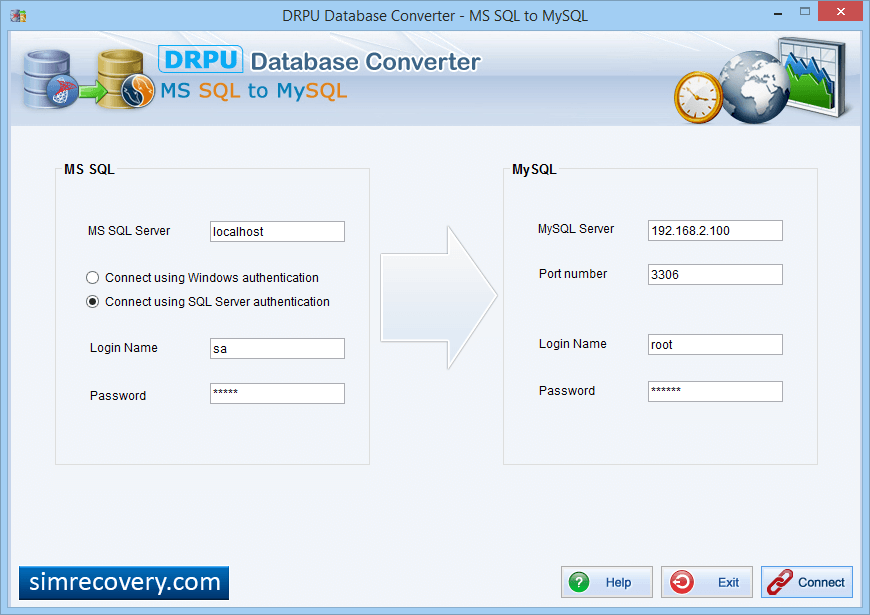
Select MS Access Tables and enter MySQL destination database name.
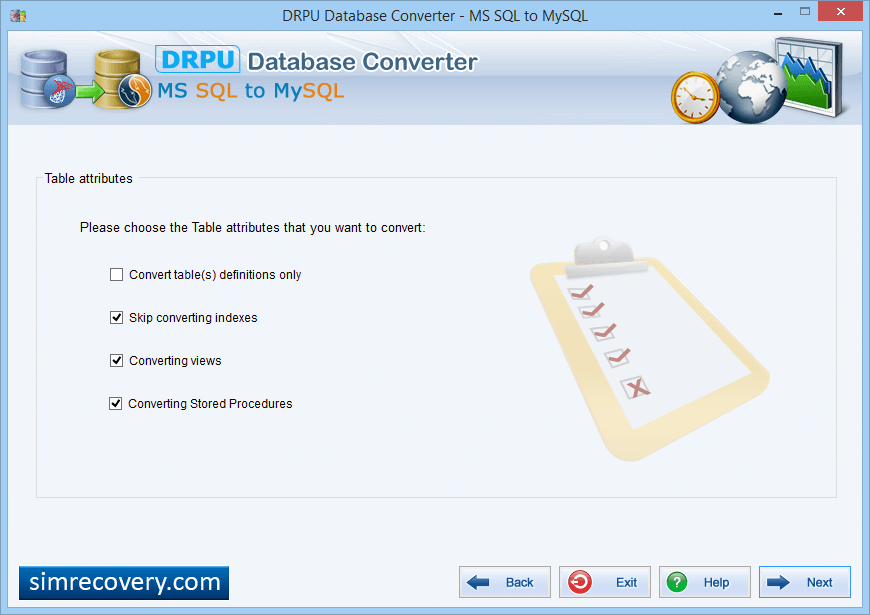
Select convert tables definitions, if you want to convert only table structure.
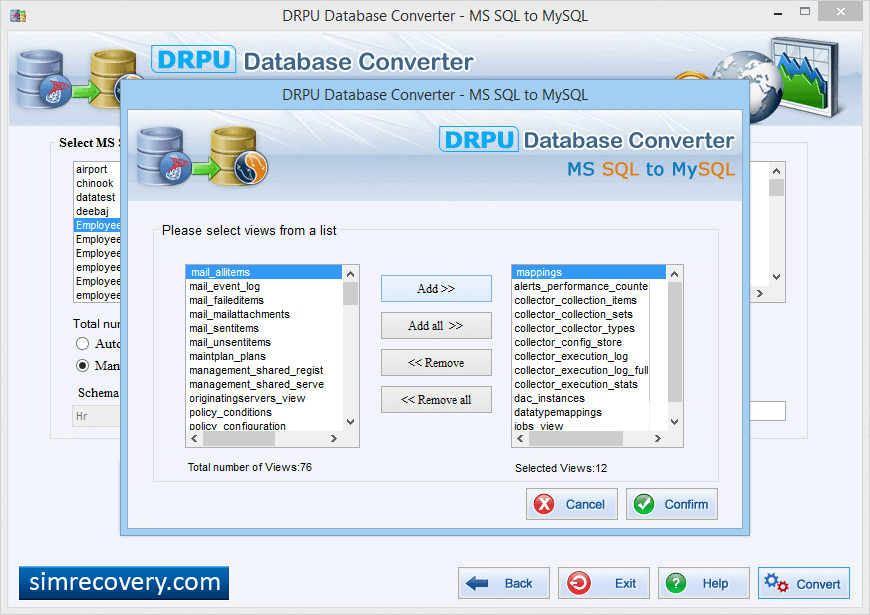
Select 'Views' from list which you want to convert. After selecting views from the database, Click the ‘Confirm’ button and then conversion process begins.
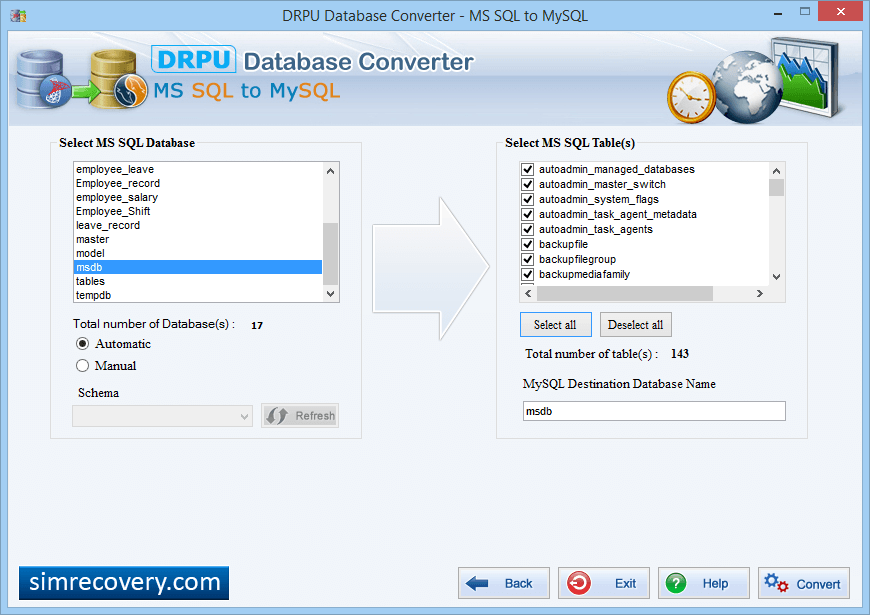
Choose 'Automatic' option, If you want to convert your MS SQL database by selecting schema items manually. Select MS SQL tables and click convert button.
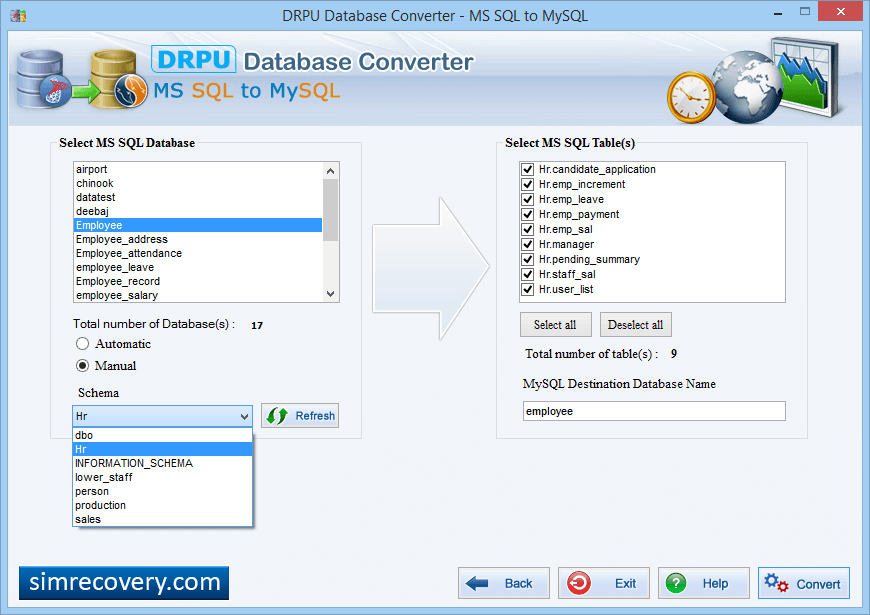
Here, Left panel shows MS SQL database list with option to select the required MS SQL database to convert in to MySQL automatically. Right Panel shows the MS SQL Table(s) list of the selected MS SQL Database.
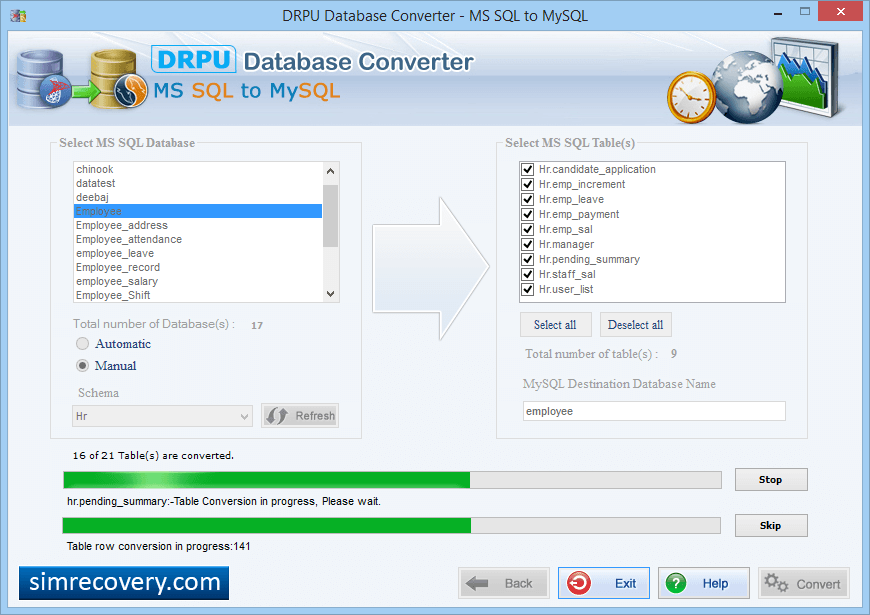
'Stop' button abort the ongoing Database conversion process and the converted database records are saved upto that point where the process was aborted. If You want to skip any particular table then you can use 'Skip' button.
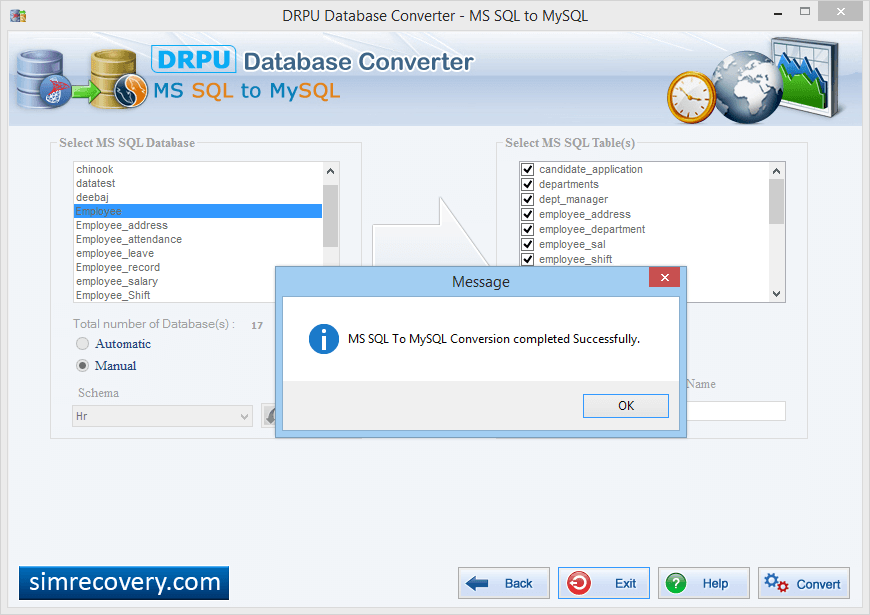
After completing conversion process, above window as shown in screenshot "MS SQL to MySQL Conversion completed successfully" will be displayed.